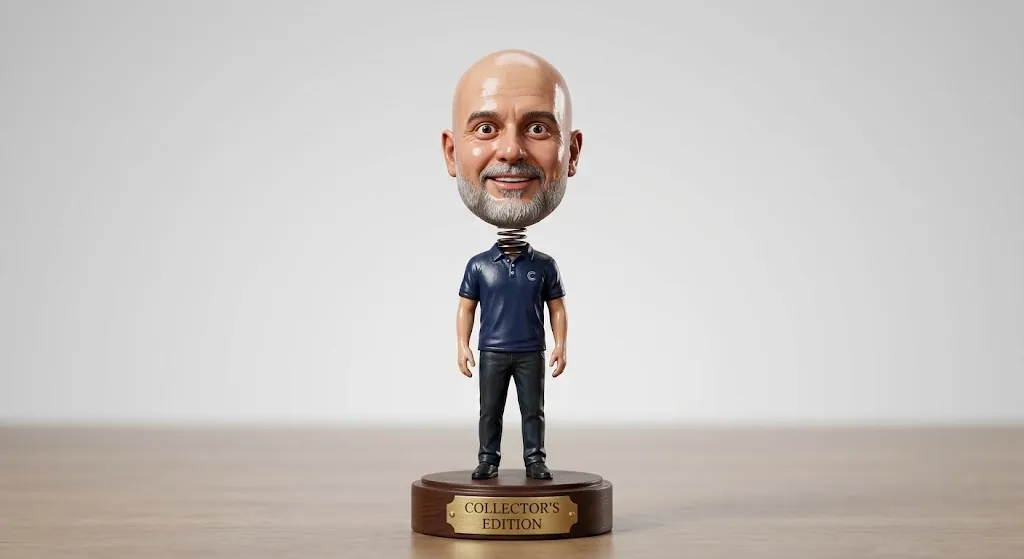
Presets.presets.collectible-bobblehead.title ✨
Presets.presets.collectible-bobblehead.description
Example Result
See what you'll get

📸 Upload Your Photo
Click or drag to upload ✨
Upload an image
Drag and drop or click to select • PNG, JPG, WebP up to 10MB
Tip: Modify the prompt above to fine-tune the AI transformation. Leave as-is to use the preset default.
🎨 Transform with AI
Upload a photo first 👆
Photography Tips
Get the best results with these tips
Good Lighting
Use natural light when possible. Face your subject towards a window or shoot outdoors during golden hour (early morning or late afternoon).
Clear Focus
Ensure your subject is sharp and in focus. Tap on your phone screen or half-press your camera shutter to lock focus before taking the shot.
Clean Background
Remove distracting elements from the background. A simple, uncluttered background helps your subject stand out.
Right Angle
For portraits, shoot at eye level. For products, try multiple angles to find the most flattering view.
Quick Editing Tips
Prepare your photos before transformation
Crop to Frame
Use your phone's built-in crop tool to remove unwanted edges. Follow the rule of thirds for better composition.
Straighten Horizon
Level your photo using the rotate/straighten tool. A straight horizon makes photos look more professional.
Adjust Brightness
If your photo is too dark or bright, use basic exposure adjustment. Aim for well-balanced lighting before AI transformation.
Save Original
Always keep a copy of your original photo. You can try different styles and compare results.
Pro Tip: Image Resolution
For best results, upload images that are at least 1024×1024 pixels. Higher resolution photos give you more detail in the final output. If you're taking photos with your phone, use the highest quality setting available.
Explore More Styles
Try these related presets to transform your photos in different ways

🔥 3D Figurine (Nano Banana)
Transform into a realistic 1/7 scale 3D collectible figurine
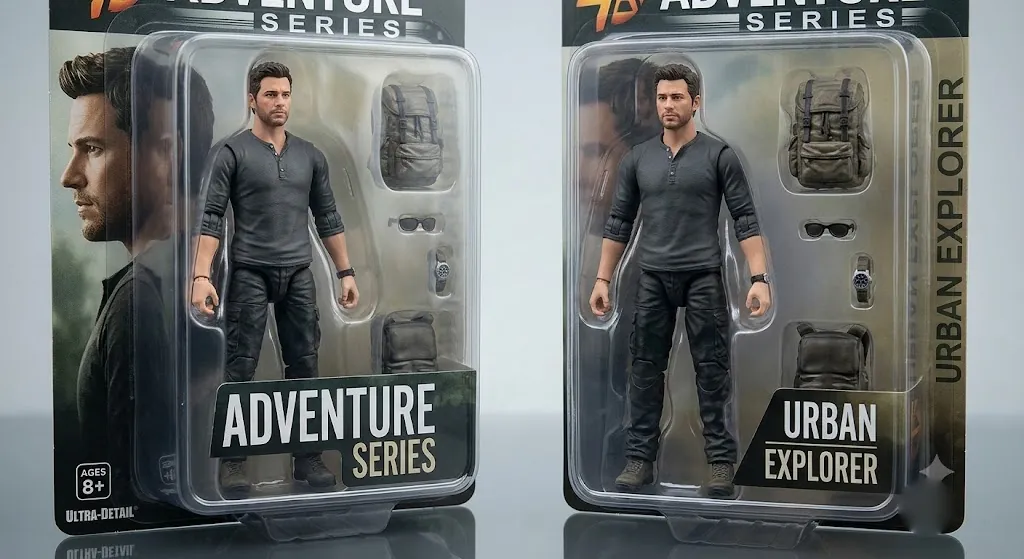
Presets.presets.collectible-action-figure.title
Presets.presets.collectible-action-figure.description
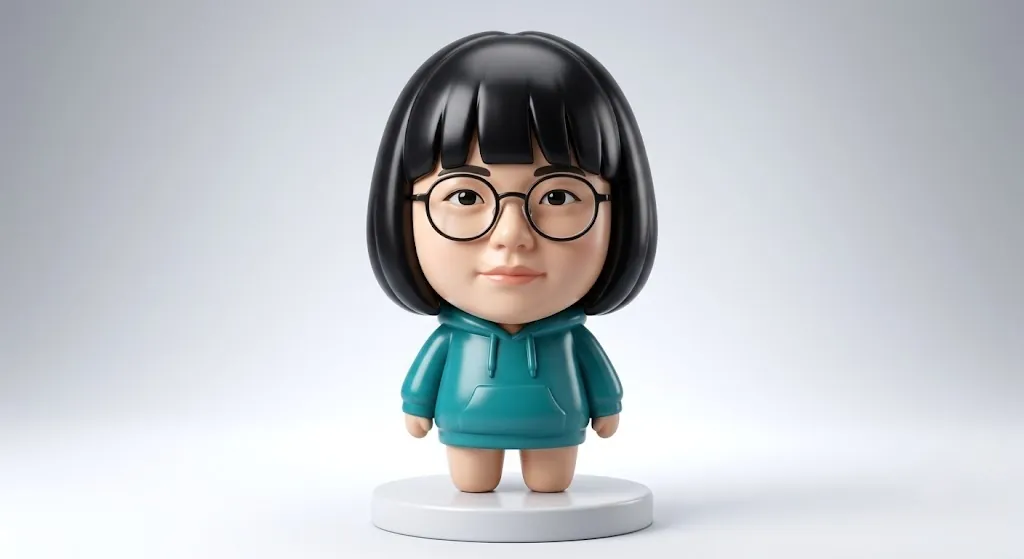
Presets.presets.collectible-chibi.title
Presets.presets.collectible-chibi.description