

AI Photo EnhancerFix blurry, dark and old photos.

Sign in to generate · 10 credits per image

Enhance photo quality with an optional prompt for blur, dark areas or surface damage. Our tests show sharper-looking portraits, brighter shadows and removed scratches. Fine detail is redrawn by the model, not recovered. Sign in to generate a 2K result for 10 credits.

01Upload your image
or drag and dropJPG, PNG, WebP · up to 10 MB · 256–4096 px per side
020/1000

An account is needed to generate. Each image costs 10 credits.

Model: Nano Banana 2 · via KIE · 2K output

Add an image to get started

WORKSPACE

Your result appears here

Upload a photo, then describe what you would like to change.

Results are listed only in your account, not publicly. Anyone with the exact image link can open it.

  1. Add the photo to enhance
  2. Set an optional priority
  3. Review and save the result

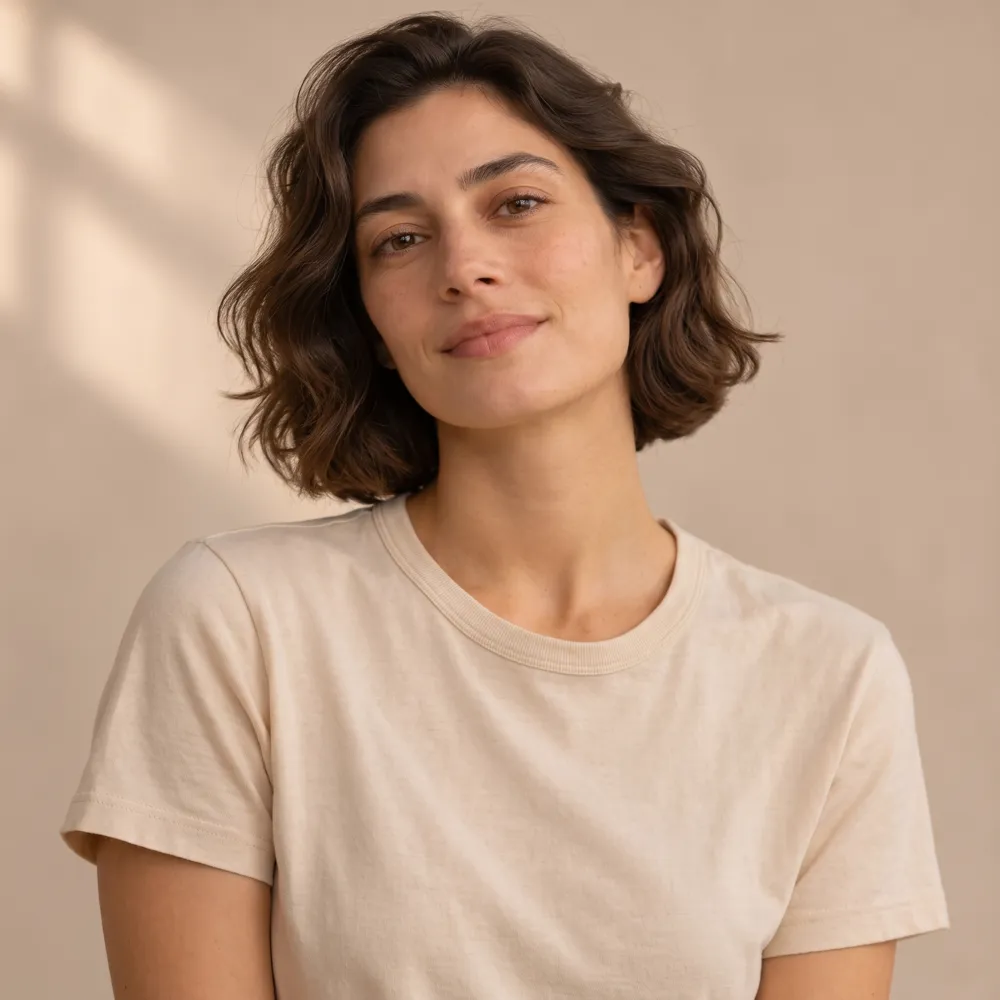
AI photo enhancer examples: blur, old damage and a dark shot

We ran these on the live site on with Nano Banana 2 (through the KIE API). Each is the first and only attempt, not retouched. The input photos are AI concept images from our own design set or images we generated with NanoPic for the test (prepared as noted on each card), not customer photos.

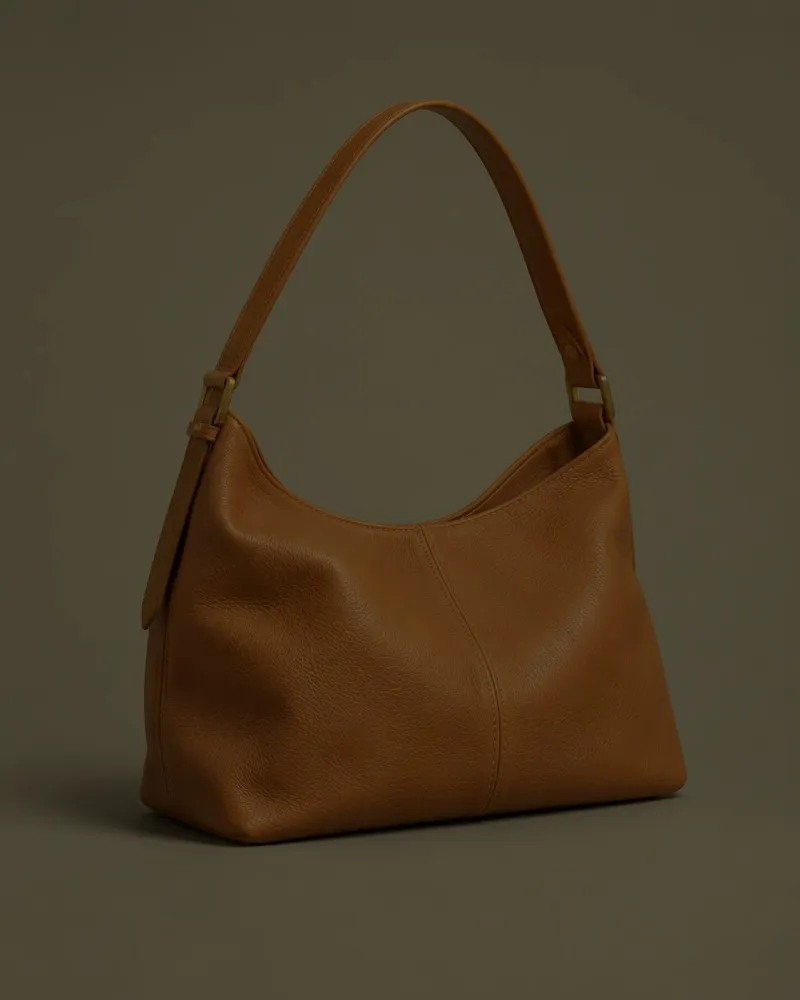
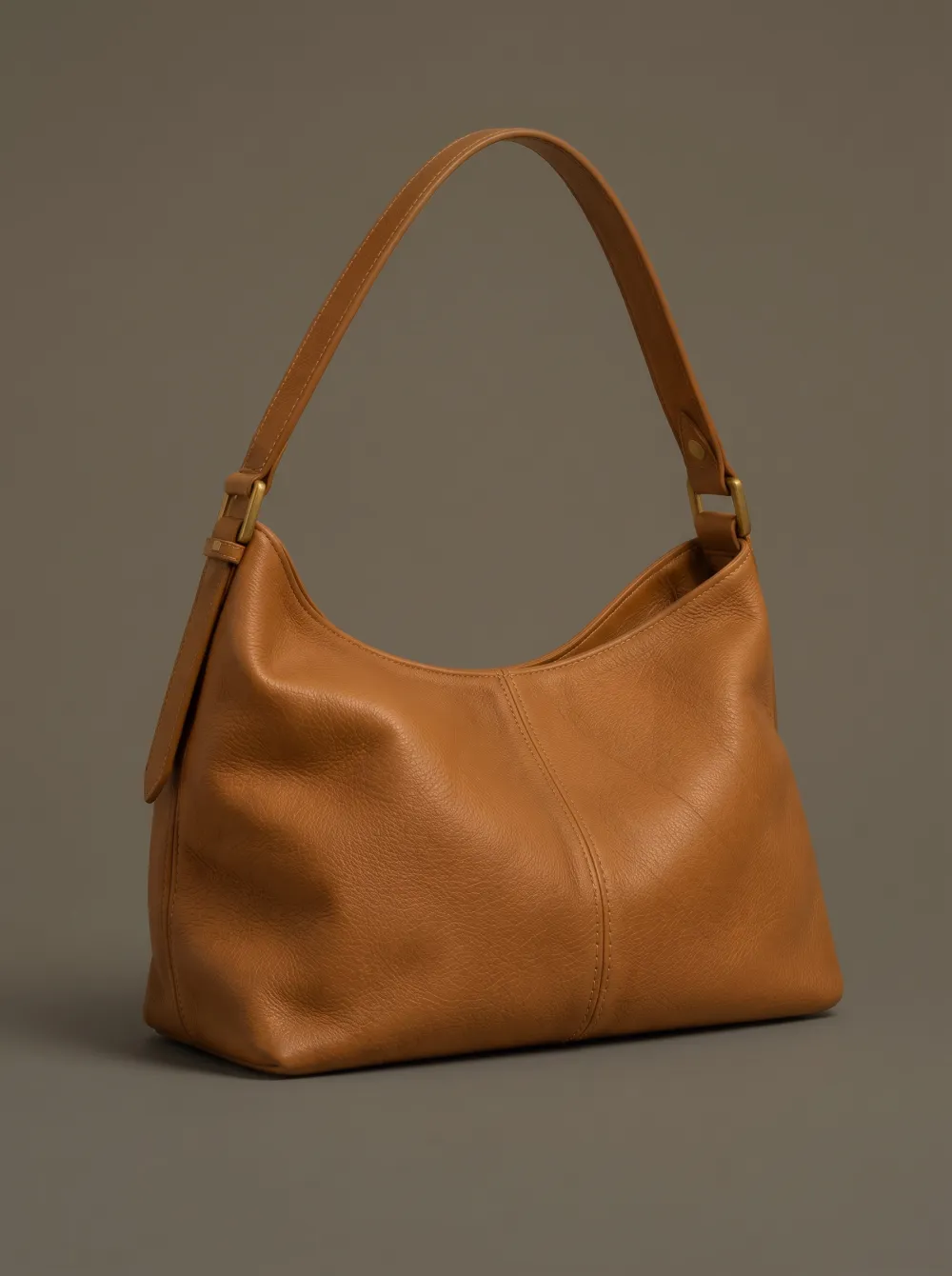
Fix a dark photo: lift shadows and recover color

Input photo for: Fix a dark photo: lift shadows and recover color
Input · 1122 × 1402
NanoPic result: Fix a dark photo: lift shadows and recover color
Result · 1792 × 2400

“Brighten the underexposed areas and recover detail in the shadows. Keep the colors natural and do not change the scene.”

To simulate an underexposed indoor shot, we darkened our handbag design image to 45% brightness and cut the blue channel to 80% before uploading it.

Time
38 seconds from start to finished (one run, status checked every 4 seconds)
Cost
10 credits
Result
1792 × 2400 JPEG (shown here resized)

The bag came back to a warm tan with visible stitching and grain, and the brass buckles read clearly again. The backdrop turned a neutral gray-brown rather than the original beige.

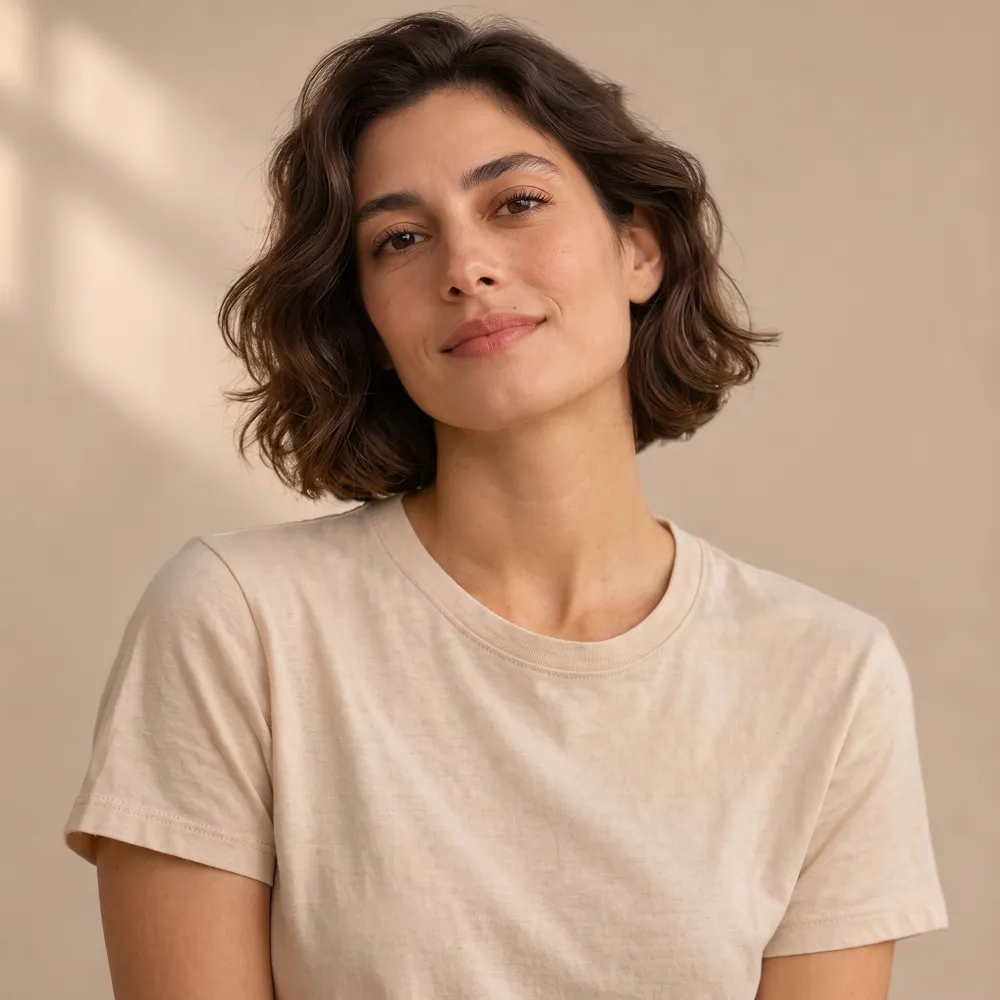
Fix a blurry photo: out-of-focus portrait

Input photo for: Fix a blurry photo: out-of-focus portrait
Input · 1254 × 1254
NanoPic result: Fix a blurry photo: out-of-focus portrait
Result · 2048 × 2048

“Unblur this photo: sharpen the face, hair and clothing so they look in focus. Keep the same person, face, pose and background.”

We blurred our portrait design image with a Gaussian blur before uploading it, to stand in for an out-of-focus shot. The exact blur radius was not recorded.

Time
37 seconds from start to finished (one run, status checked every 4 seconds)
Cost
10 credits
Result
2048 × 2048 JPEG (shown here resized)

The face, hair and T-shirt came out sharp with the same pose. The fine detail (eyelashes, hair strands, fabric) is redrawn by the model, not recovered from the blur.

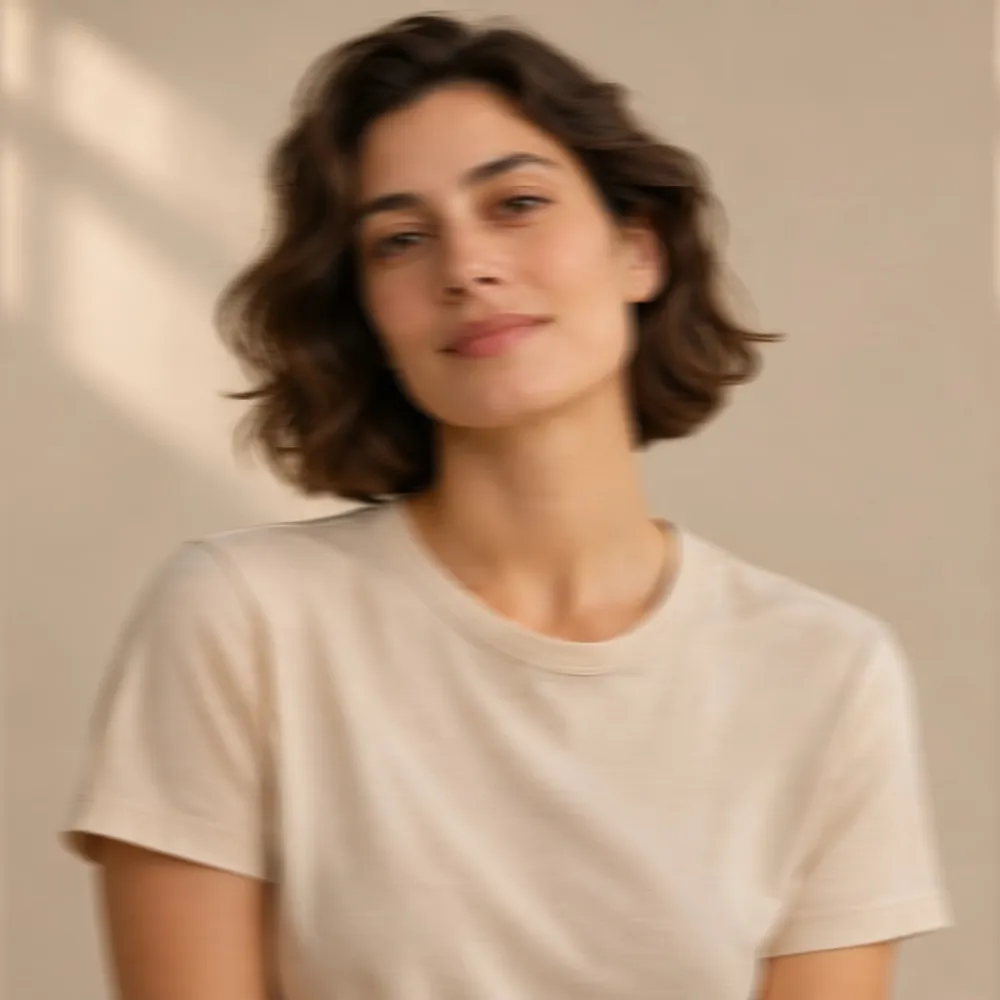
Remove motion blur from a portrait

Input photo for: Remove motion blur from a portrait
Input · 1254 × 1254
NanoPic result: Remove motion blur from a portrait
Result · 2048 × 2048

“Remove the motion blur so the person looks sharp and in focus. Keep the same person, face, pose and background.”

We added a horizontal motion blur to our portrait design image before uploading it, to stand in for a shaky shot. The exact blur length was not recorded.

Time
42 seconds from start to finished (one run, status checked every 4 seconds)
Cost
10 credits
Result
2048 × 2048 JPEG (shown here resized)

The horizontal smear is gone and the portrait reads as in focus, with the same person and pose. As with the out-of-focus test, sharp detail is AI-drawn.

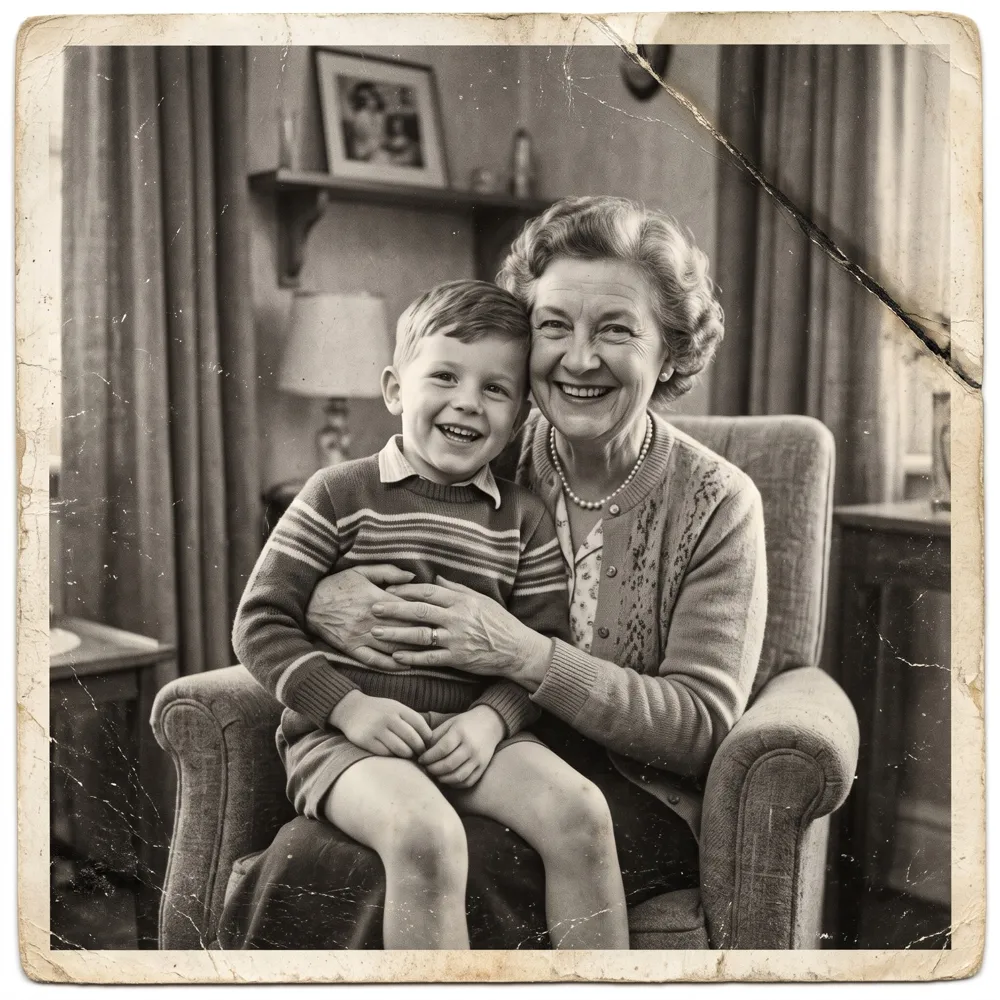
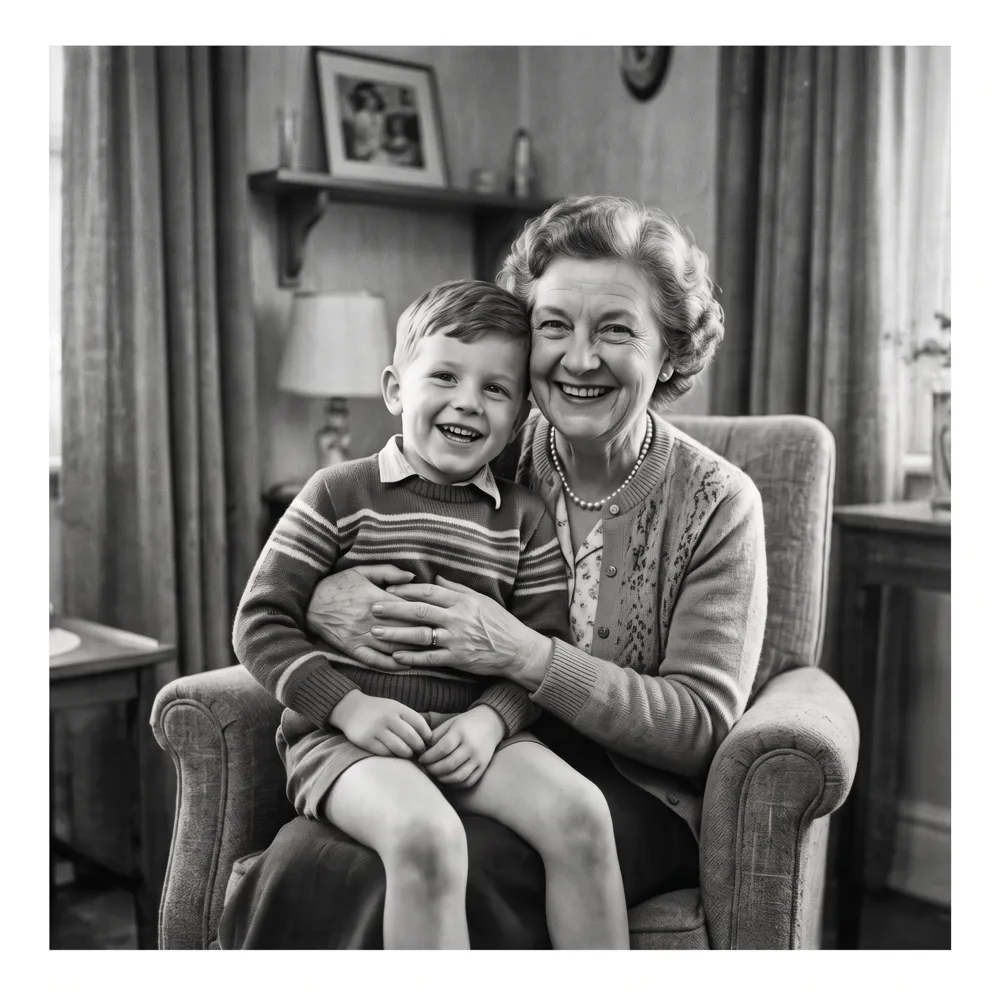
Repair an old black-and-white photo

Input photo for: Repair an old black-and-white photo
Input · 1600 × 1600
NanoPic result: Repair an old black-and-white photo
Result · 2048 × 2048

“Restore this old photo: remove the scratches, dust spots, crease and fading. Keep it black and white and keep every face, the clothing and the composition the same.”

Input made by NanoPic from a text prompt for this test (a 1950s family portrait with scratches, dust and a crease); the damage was generated, so this is not a real old photo.

Time
41 seconds from start to finished (one run, status checked every 4 seconds)
Cost
10 credits
Result
2048 × 2048 JPEG (shown here resized)

The crease, scratches and dust spots were removed and it stayed black and white with the same faces and layout. The aged paper border was kept.

Photo enhancer prompts: blur, old damage, exposure and color

Browse all prompts
Real NanoPic result: Unblur a photoInput photoReal result

Enhance

Unblur a photo

Unblur this photo: sharpen the face, hair and clothing so they look in focus. Keep the same person, face, pose and background.

Fills the editor above

Real NanoPic result: Repair an old photoInput photoReal result

Restoration

Repair an old photo

Restore this old photo: remove the scratches, dust spots, crease and fading. Keep it black and white and keep every face, the clothing and the composition the same.

Fills the editor above

Real NanoPic result: Fix a dark photoInput photoReal result

Enhance

Fix a dark photo

Brighten the underexposed areas and recover detail in the shadows. Keep the colors natural and do not change the scene.

Fills the editor above

Enhance

Remove a color cast

Remove the yellow indoor color cast so whites look neutral. Keep skin tones and everything else as it is.

Fills the editor above

Enhance

Sharpen soft detail

Sharpen soft edges and reduce noise while keeping natural texture in fabric and skin. Do not add or remove anything.

Fills the editor above

Your result depends on your photo and wording.

How to use the AI photo enhancer

Upload the photo you want to improve. The prompt is optional, but a short instruction can focus the request on the part of the picture you care about most.

  1. Add the photo to enhance

    Choose a supported photo from your computer, or scan the desktop QR code to send one from your phone.

  2. Set an optional priority

    Leave the prompt blank or describe a lighting or detail adjustment. Sign in to generate; each image uses 10 credits.

  3. Review and save the result

    Check the 2K result for the details that matter to you. Download a copy within 30 days, before it is scheduled for deletion from our storage.

Enhance photo quality: blur, old damage and dark shots, tested

These first-attempt results were made on November 13, 2026, with no retouching. We blurred or darkened AI concept images from our design set; the damaged family portrait was generated with NanoPic, not scanned from an archive. Prompt excerpts below summarize each request. Times describe these runs, not a speed guarantee.

ProblemPrompt we used (short)TimeWhat changedWhat it can’t do
Out-of-focus portraitUnblur this photo: sharpen the face, hair and clothing37 s1254 × 1254 → 2048 × 2048; face, hair and shirt looked sharpRecover the original eyelashes, hair strands or fabric detail
Motion-blurred portraitRemove the motion blur so the person looks sharp and in focus42 sHorizontal smear removed; pose keptProve that the redrawn detail matches the source
Generated old-photo damageRemove the scratches, dust spots, crease and fading; keep it black and white41 sCrease, scratches and dust removed; stayed black and whiteEstablish the original appearance of a real archive photo
Dark product shotBrighten the underexposed areas; keep the colors natural38 sTan bag, stitching and buckles became visibleGuarantee unchanged color: the backdrop became gray-brown

What the AI photo enhancer can’t recover

A clearer-looking result is an interpretation. The enhancer can draw plausible detail where blur or damage hid it, but that does not establish what was originally there. Keep your source file alongside the output, especially for portraits or archive work.

  • Fine detail is redrawn by the model, not recovered from the source.
  • Do not use the output to read obscured text or license plates, identify a person, or establish forensic evidence.
  • Heavy damage may change faces; check faces against the original before keeping or sharing the result.

AI photo enhancement uses for everyday pictures

Try an enhancement request for a dim indoor photo, uneven lighting, or a picture where an important texture is hard to see. Review the output against your source before deciding whether to use it.

  • Ask for brighter shadows in an indoor scene.
  • Request more visible texture in a product photo.
  • Describe a more balanced appearance for a personal photo.

AI photo enhancer prompts for targeted adjustments

Say which area needs attention and how strong the change should be. Concrete instructions give a clearer target than asking to make everything better.

Photo concernExample instruction
Blurry or out of focusUnblur this photo: sharpen the face, hair and clothing so they look in focus. Keep the same person, pose and background.
Motion blurRemove the motion blur so the person looks sharp and in focus. Keep the same person, pose and background.
Scratches, dust or a creaseRemove scratches, dust spots, the crease and fading. Keep it black and white; keep faces, clothing and composition.
Dark shadowsLift the shadows gently; keep the highlights
Distracting color castUse natural colors and neutral whites
Hard-to-see textureBring out the woven texture of the jacket

AI photo enhancer limits and 2K resolution

Use JPG, PNG, or WebP files no larger than 10 MB. Both sides must measure 256–4096 px. Enhanced images are generated at 2K resolution.

Use the AI image upscaler for 4K output

AI photo enhancer credits and subscription cost

Enhancement costs 10 credits per generated image. Pro provides 200 credits for $16.90 per month, or 20 images (200 ÷ 10); the yearly plan price is $144. There are no free credits and no free plan. Prices as of November 13, 2026.

AI photo enhancer privacy and result retention

Generation requires a signed-in account. Your results are listed only in your account, never publicly. Each result has an unlisted direct link that anyone holding the exact link can open. Results are scheduled for deletion from our storage after 30 days. Save a downloaded file if you need a lasting copy.

The enhancer uses Google's Nano Banana 2 model through the KIE API. The safety sequence checks the text prompt first, then the uploaded photo, then the generated result. A blocked job is not charged, and a failed job triggers an automatic credit refund.

For phone-to-desktop uploads, the QR code is valid for 15 minutes. We request deletion of the transfer copy after pickup; scheduled cleanup also removes leftover copies.

Other AI image tools

AI Photo Enhancer FAQ

Can it fix a blurry photo?

It can make a blurry photo look sharper. Our Gaussian-blurred portrait took 37 seconds and the motion-blurred portrait took 42 seconds. Both used deliberately blurred design images; the sharp detail was AI-redrawn, not recovered.

Can it restore an old damaged photo?

You can request scratch, dust and crease removal. Our generated old-photo test took 41 seconds and stayed black and white. It was not a real archive photo, and heavy damage may change faces. Compare the result with your original.

Does the enhancer increase resolution?

It generates 2K output: our blurred portrait went from 1254 × 1254 to 2048 × 2048. It does not enlarge every possible input. Use the separate AI image upscaler for 4K output.

Can I enhance a photo without writing instructions?

Yes. The enhancement prompt is optional.

How do I ask for a subtle enhancement?

Describe a small change, such as gently lifting shadows, and specify details you want to keep.

Is the enhanced photo a 4K image?

No. The enhancer outputs 2K. The separate AI image upscaler outputs 4K.

How large can I print an enhanced photo?

A 2048 px side prints at about 6.8 in (17.3 cm) at 300 PPI. For a larger print, run the result through the AI image upscaler for 4K output.

Can it remove noise or pixelation?

You can ask for it, for example “reduce grain and smooth pixelated edges”. We tested blur, low light and old-photo damage, not noise or pixelation on their own, so compare the result with your original.

Does NanoPic add a watermark?

NanoPic adds no visible watermark to downloads. Google states that images made with its Nano Banana models carry an invisible SynthID digital watermark.

Can I enhance several photos at once?

No. The enhancer takes one photo per run, and each run costs 10 credits. Enhance your photos one after another.

Is photo enhancement free?

No. Generation costs 10 credits per image, and NanoPic has no free plan or free credits.

Can other users see my enhanced photos?

Results are listed only in your account, never publicly. Each result has an unlisted direct link that anyone holding the exact link can open. Results are scheduled for deletion from our storage after 30 days.